Build a Form in Form Studio
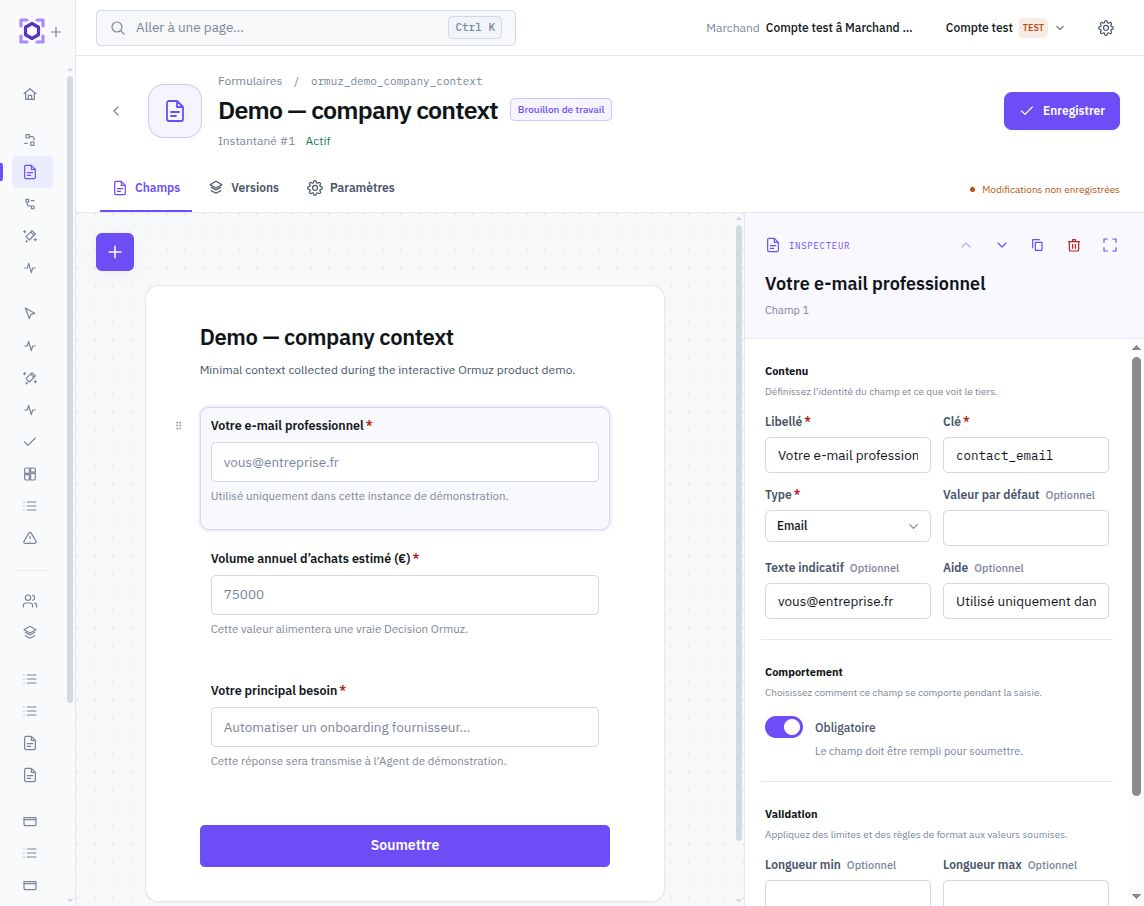
Form Studio is the visual design workspace for a Form. The canvas organizes fields; the side panel becomes the inspector for the selected field, or the assistant when nothing is selected.
Canvas and inspector
The canvas represents the sequence of fields in the schema. You can add, reorder, and select fields. When a field is selected, the inspector exposes its properties: key, label, type, required state, help, default value, options, or constraints depending on the control. The control remains presentation: the saved contract is the canonical value_type contract. An amount therefore requires a fixed currency or another common.currency_codefield, while an address is edited as a block but outputs as a single common.address.
Selection drives the right panel: inspector for one precise field, Form-level assistant when no field is selected.
Historical fields remain readable when an old revision is opened, but that view is read-only. Changes start from current Working rather than rewriting a past snapshot.
Form-level AI assistant
When no field is selected, the right panel can propose a schema evolution from an intent expressed in natural language. Applying a proposal changes the candidate displayed in Studio; creating a revision remains a separate save action.
Selecting a field gives priority to its precise configuration. Deselecting it returns to the global assistant view, preserving the same editing logic as other Ormuz Studios.
Saving creates an immutable snapshot
A schema change is saved against the Working revision and its content_hash. If Working changed in the meantime, Ormuz rejects the stale write rather than silently overwriting recent work. A successful save creates a new revision and moves Working to that snapshot.
The name, description, and activation belong to Form identity; the versioned schema remains the executable content that must stay reproducible in processes consuming it.
History and Release
The Versions tab lets you inspect Form revisions and Releases. An old revision opens read-only with its number and exact content. Promoting a revision creates a Release without modifying that snapshot.
If a process must be promoted to Release and depends on this Form, the Form revision pinned by that process must itself have a Release. See Use a Form in a process.
The Working → snapshot → Release lifecycle, live-deployment rule, and shared retention policy are described in Versions, Releases, and deployment.